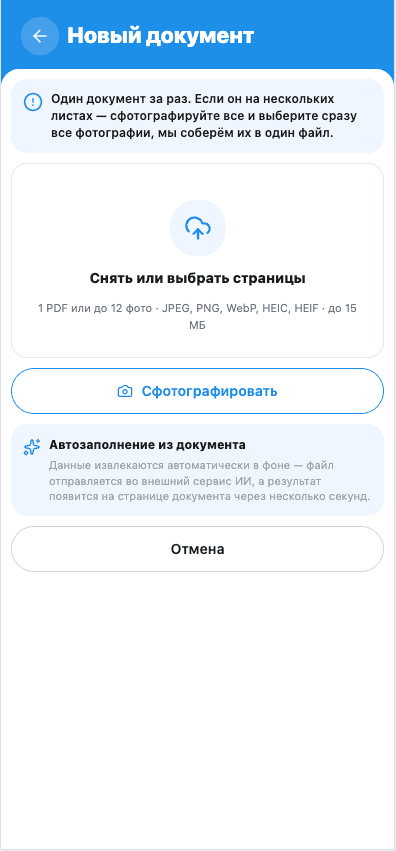
To upload a readable pet passport or vet report, photograph every relevant page in full, avoid glare and inspect the text at a larger size. If your practice already sent a PDF, keep the original file rather than photographing it on a screen.
Prepare the page and lighting
Place the document on a flat surface in even light. Keep fingers off the text, flatten the page and clean the lens. Hold the camera above the sheet: a steep angle makes small lines harder to read.
A glossy label or overhead lamp can hide a date behind a reflection. Change the position of the light or document, then take another photo. A tidy thumbnail alone is not evidence that the text is readable.
Check the photo before uploading
Enlarge it and inspect the smallest important details: microchip digits, dates, units, the practice name and any signature or stamp. Keep page edges visible where the text continues.
| Visible problem | What to do |
|---|---|
| Text becomes blurry when enlarged | Retake without movement and wait for focus |
| Glare covers a label or line | Change the light angle and inspect the next image |
| Part of the page is cropped | Move back slightly and include the whole sheet |
| A report was photographed on screen | Download the original PDF where possible |
The illustration below compares a readable page with a cropped edge and glare. It is a schematic example, not an actual medical document.
Keep one document’s pages together
Do not combine a passport, a different clinic’s test result and instructions from another appointment in one upload. Papers in the same folder may still be separate documents.
Arrange a multi-page report’s photos in page order. Check that the first and last pages are present, there are no duplicates and no page belongs to another pet. Without printed page numbers, compare headings and the continuation of the text.
For example, a demonstration report has three pages. Compare the sequence “1 → 2 → 3” with the paper original before uploading. Do not substitute a similar result from another day for a missing second page.
Review the recognised details
SmallFriendFiles keeps the original and extracts available details. Check the document type, date, practice and selected pet. Recognition can make mistakes even when the photo is readable.
If the source is clear, correct the available field manually against it. If a line is unreadable in both the photo and the paper record, ask the clinic. Do not fill unknown values with guesses. A warning about inconsistent pages is a reason to check the collection, not conceal the difference.
Formats and limits can change: follow the current upload instructions. There is no need to turn an accepted, readable PDF into individual photos just to upload it.
Finish the first step
Open the saved original and confirm that it is readable. Add the next document separately. The medical records organisation guide helps with the wider archive; the digital passport copy guide explains the role of an official original.